A short guide to building presentations with Lovable.
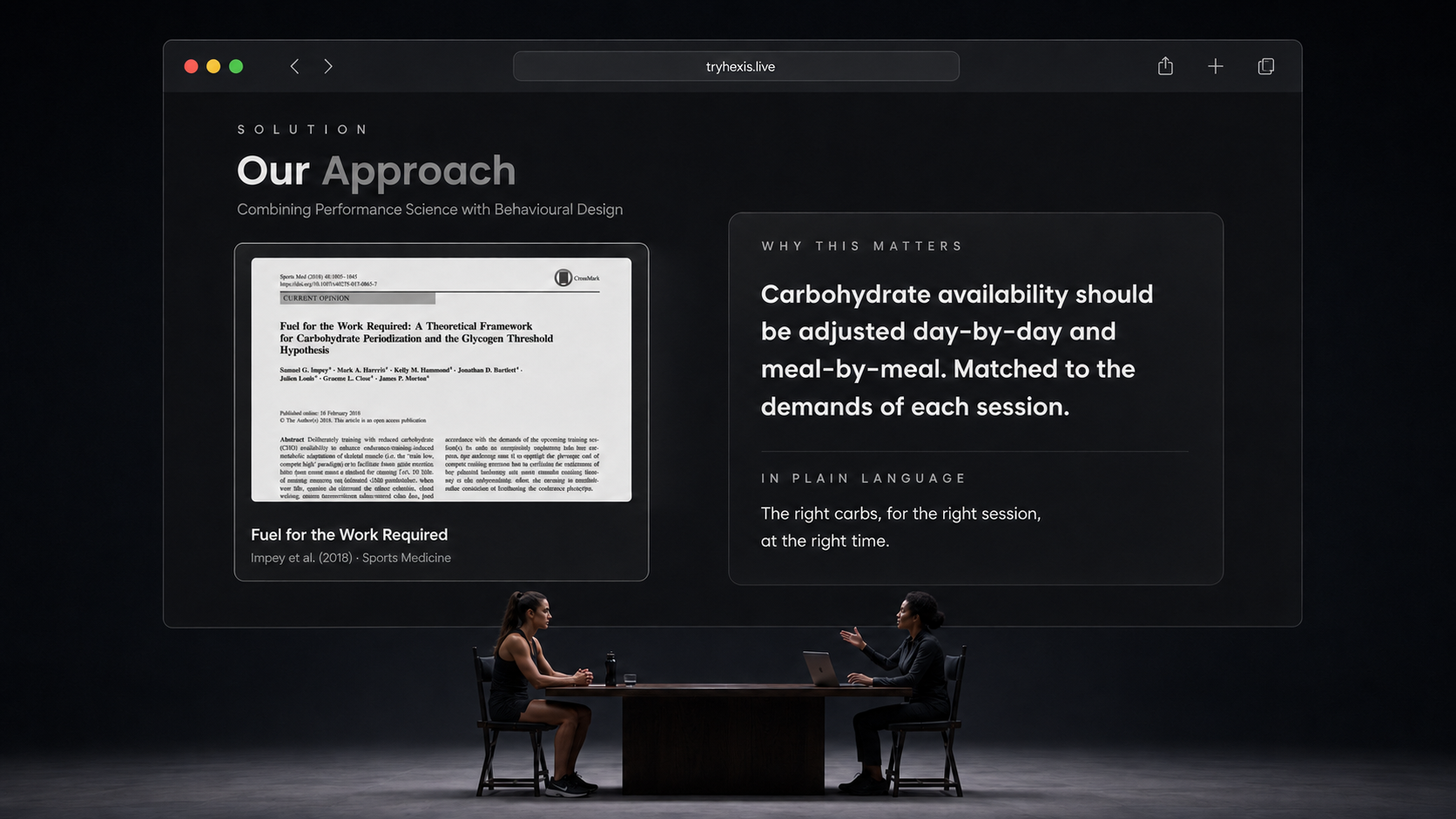
A performance nutritionist opened tryhexis.live and nearly fell off their chair.
That was the moment I realised this format was different.
I hadn’t made the presentation in PowerPoint.
I had built it in Lovable as a website.
A product brochure: sixteen slides explaining the product, the science and the technology.
They look like presentation decks. They advance with the arrow keys, open in full screen and have a gallery showing every slide.
Underneath, they are normal web applications.
That distinction changes what a presentation can be.
Lovable is the builder. The deck is software.
Lovable is an AI development environment. You describe what you want, work through the design with it, and it produces a normal frontend application.
In this case, that means Vite, React, TypeScript, Tailwind CSS and Framer Motion. Basically, it can look reeeeeeally nice if you ask for the right things.
Every slide is a React component?¿ (no idea either!) drawn on a fixed 1920 × 1080 canvas. A presentation component keeps track of the current slide, click-to-reveal steps, full-screen mode and the slide gallery.
The browser scales the canvas to fit whichever screen it is being presented on.
There is no PowerPoint file underneath it.
The deployed website is the presentation.
That means a slide can contain anything a website can contain: animation, video, an interactive product demonstration, a calendar, a form, a button that copies text, or a live data visualisation.
It also means the deck is always current.
I change the design, publish it, and everyone with the link sees the new version.
Start with the brand system, not the first slide.
The most important prompt is not:
Make me a beautiful presentation.
It is the specification for what your brand looks like.
Give Lovable the logo files, typeface, colour values, gradients and product assets. Define which font weights belong to display headings, labels and body copy. Explain the spacing, corner radii, shadows and image treatment.
If you work for a brand/organisation, this information is online or can be scraped from a website using Firecrawl.
Then build one title slide and one representative content slide.
Many of you reading this may work for multiple organisations. To save time making presentations, you should build a slide studio.
I did this recently as part of my digital transformation consulting for Max. We created a slide studio: a central space for the slide templates, components, and brand guidelines for each organisation Max works with. This gave us a fantastic starting point for creating great slides, fast.
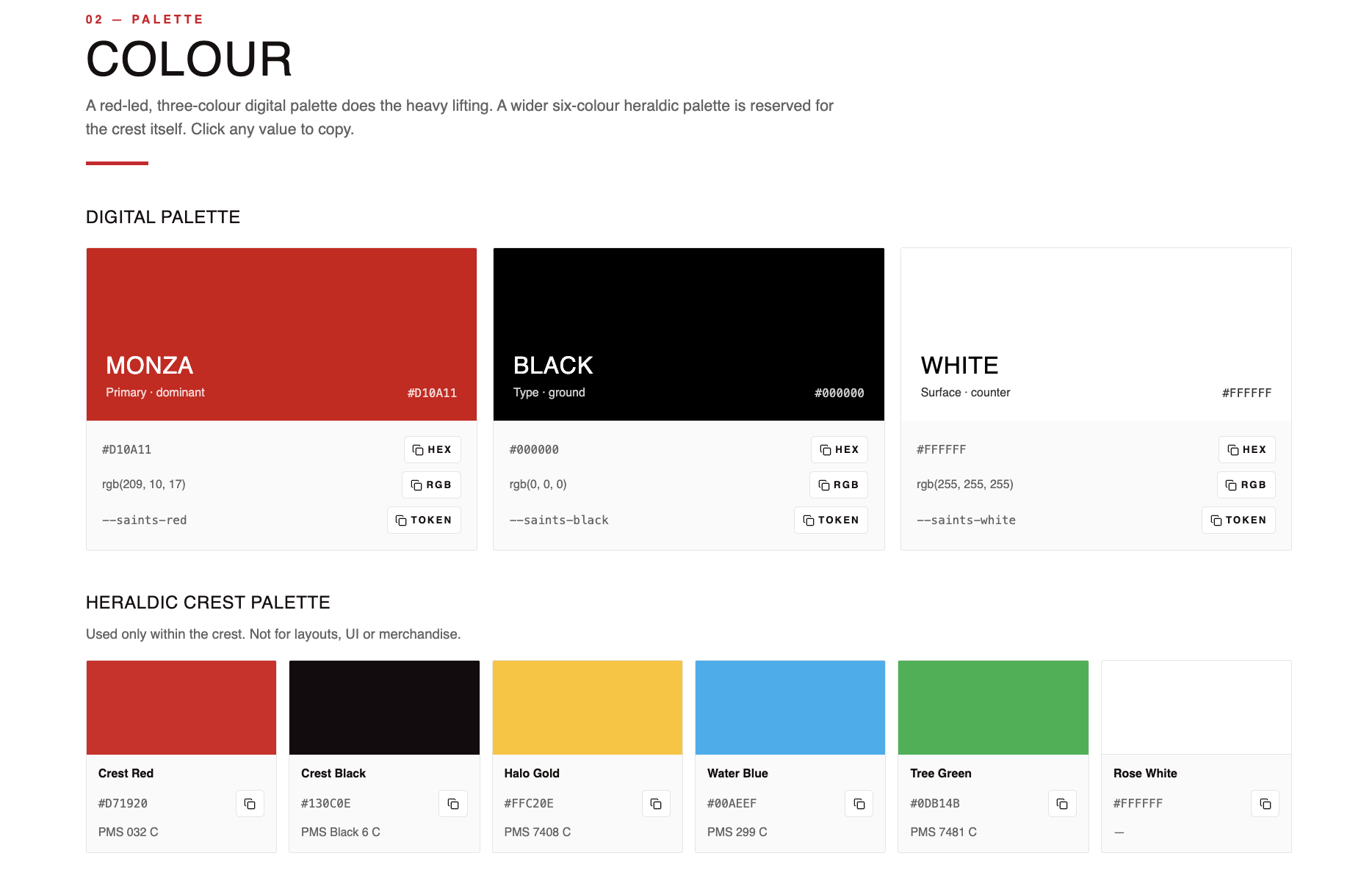
Keep working on the templates until they until they look unmistakably like the brand. Only then ask it to carry that system across the rest of the deck.
Hexis had a good starting point because the foundations already existed: a clear identity, typography, a recognisable colour system and strong product UI.
Font weight is not a small detail.
The quickest way to make an AI-generated design feel generic is to get the typography almost right.
The correct font with the wrong weight still looks wrong.
So does a heading with loose line spacing, a label without enough tracking, or body copy that is too bright against a dark background.
You can get Claude or ChatGPT to write prompts for you to talk to Lovable if you need. Ask it to be specific about the hierarchy:
Large, heavy display type for the main argument.
Smaller tracked capitals for section labels.
Softer body copy that supports rather than competes.
Colour used on one or two important words, rather than across an entire paragraph.
Once those rules are stable, Lovable can repeat them consistently.
This is the unglamorous reason the finished decks look coherent.
A little more, by email.
Personal notes on science, AI and the things I’m making. Straight from me to your inbox.
The decks do not use PowerPoint animation effects.
They use Framer Motion, an animation library for React.
Each new slide appears immediately, then the elements inside it animate independently.
The headline might fade and rise into place. Product cards arrive with staggered delays. A cursor moves with spring physics. Data points travel between two systems.
Instead of choosing “Fly In” from a menu, you are describing how every layer should behave.
The standard reveal in the Hexis deck is simple: opacity moves from zero to one while the element rises by about 20–30 pixels over half a second.
Lists are staggered, so each item arrives slightly after the last.
Springs are used for objects that should feel physical: cursors, clicks, phones and modal windows.
Keyframes create the ambient movement: breathing glows, pulsing light, shimmer sweeps and moving data dots.
AnimatePresence lets something disappear smoothly rather than being instantly removed from the page.
Framer Motion moves the layers.
CSS creates most of the atmosphere around them: radial gradients, transparent colour, blur, glass cards, shadows and neon edges.
That is where most of the look actually comes from.
You can add confetti to a completion moment, animate an entire workflow inside a phone, or let a product screen assemble itself in front of the audience.
The limit is much closer to your imagination than it is to the software.
The prompts I would use now
These are not the exact original messages, word for word.
They are the prompts I would use if I were rebuilding the system today, reconstructed from what the finished project actually contains.
I would not give Lovable one enormous prompt.
I would build it in pieces.
Prompt one: build the presentation engine
Build a browser-based presentation as a Vite, React and TypeScript application.
This is not a conventional scrolling website and there should be no PowerPoint file underneath it.
Create every slide as a separate React component rendered inside a fixed 1920 × 1080 SlideLayout canvas.
Add a ScaledSlide wrapper that measures the available browser area with ResizeObserver and applies one uniform scale. The slide must always retain its 16:9 proportions, remain centred and never reflow like a normal responsive webpage.
Create a Presentation controller containing:
- An ordered list of slide components
- Current-slide state
- A subStep state for presenter-controlled reveals
- Full-screen state
- Previous and next controls
- A slide-gallery overlay
- Keyboard navigation
Right arrow or Space should advance the current sub-step or move to the next slide. Left arrow should move backwards. F should toggle full screen. G should open the gallery. Escape should close the gallery or leave full screen.
Keep the application client-side. No backend is required.Prompt two: establish the visual system
Use the supplied logos, typography, brand colours and website screenshots to create a brand presentation system.
Build the static composition before adding animation.
Use:
- Large, heavy display typography
- Tracked uppercase labels
- Restrained body copy
- Low-opacity radial glows
- Fine gradient edge details
- Semi-transparent glass panels
- Subtle shadows and image depth
Do not use stock illustrations.
Create one title slide and one data slide first. Keep refining those until they feel unmistakably like [insert brand] before applying the system to the rest of the deck.Prompt three: add restrained Framer Motion
Add Framer Motion inside the individual slide components.
Do not add elaborate global slide transitions. Each slide should mount immediately and animate its own hierarchy.
For the main headline, use:
initial: opacity 0 and y 24
animate: opacity 1 and y 0
transition: duration 0.55 seconds with easeOut
For repeated cards or proof points, stagger their delays using approximately:
0.3 + index × 0.2 seconds
Use spring movement for cursors, clicks, phones and other objects that should feel physical.
Use keyframe arrays for breathing glows, shimmer, pulses and moving data points. Ambient loops should run slowly over two to five seconds.
Animate decorative glows on separate absolute-positioned layers. Keep the actual text and product content stable.
Prefer transform and opacity for movement. Use AnimatePresence only when a conditional element needs an exit animation.
Animate the hierarchy, not every object on the slide. The finished static composition must remain strong when all movement stops.
Include reduced-motion support.Prompt four: animate a product or topic
Turn the supplied screenshots/data/images into a staged demonstration inside the slide.
Use a step prop to control the sequence so each presenter click reveals the next state without leaving the slide.
Add:
- A spring-animated cursor
- A small click ripple
- Smooth transitions between product states
- A short completion confirmation
- Restrained confetti at the final successful action
The animation must also work correctly when the presenter navigates backwards.
Keep the product interface legible throughout. The motion should explain the workflow rather than decorate it.These prompts will get you much closer.
They will not make the decisions for you.
You still need to choose the story, supply good assets, recognise when the typography is wrong and stop adding motion before the slide becomes unbearable.
A little more, by email.
Personal notes on science, AI and the things I’m making. Straight from me to your inbox.
A short recipe for making your own
Assemble a proper brand pack: logos, fonts, weights, colours, UI assets and two or three good visual references.
Ask for a browser-based presentation with a fixed 1920 × 1080 canvas—not a responsive landing page.
Build the title slide and one content slide first. Use them to settle the design system.
Give each slide one job. Write the narrative before adding visual effects.
Use real data or images.
Add motion after the static composition works. Start with opacity, small position changes and restrained staggered timing.
Test every direction: forwards, backwards, full screen, gallery view and a direct link to the deployed site.
Lovable slides also support presenter-controlled reveals.
A click can advance part of the story without leaving the slide, then move to the next slide once the sequence is complete.
That small detail makes the experience feel like a presentation rather than a website someone happens to be clicking through.
You need to see it to believe it.
Open tryhexis.live and click to begin.
Use the arrow keys to move through the product brochure. Press G to see every slide and F to enter full screen.
It is easier to understand the format by using it than by reading another description of it.
The system is starting to travel.
Once I had encoded the Hexis visual system into reusable components, I realised I could use the same approach for other formats.
I now use it to produce Hexis social-media graphics and product-launch carousels.
The graphic is designed in the browser using the same fonts, spacing, colours, product assets and device treatments as the presentation.
Instead of a 1920 × 1080 slide, the canvas is sized for Instagram.
Same system. Different output.
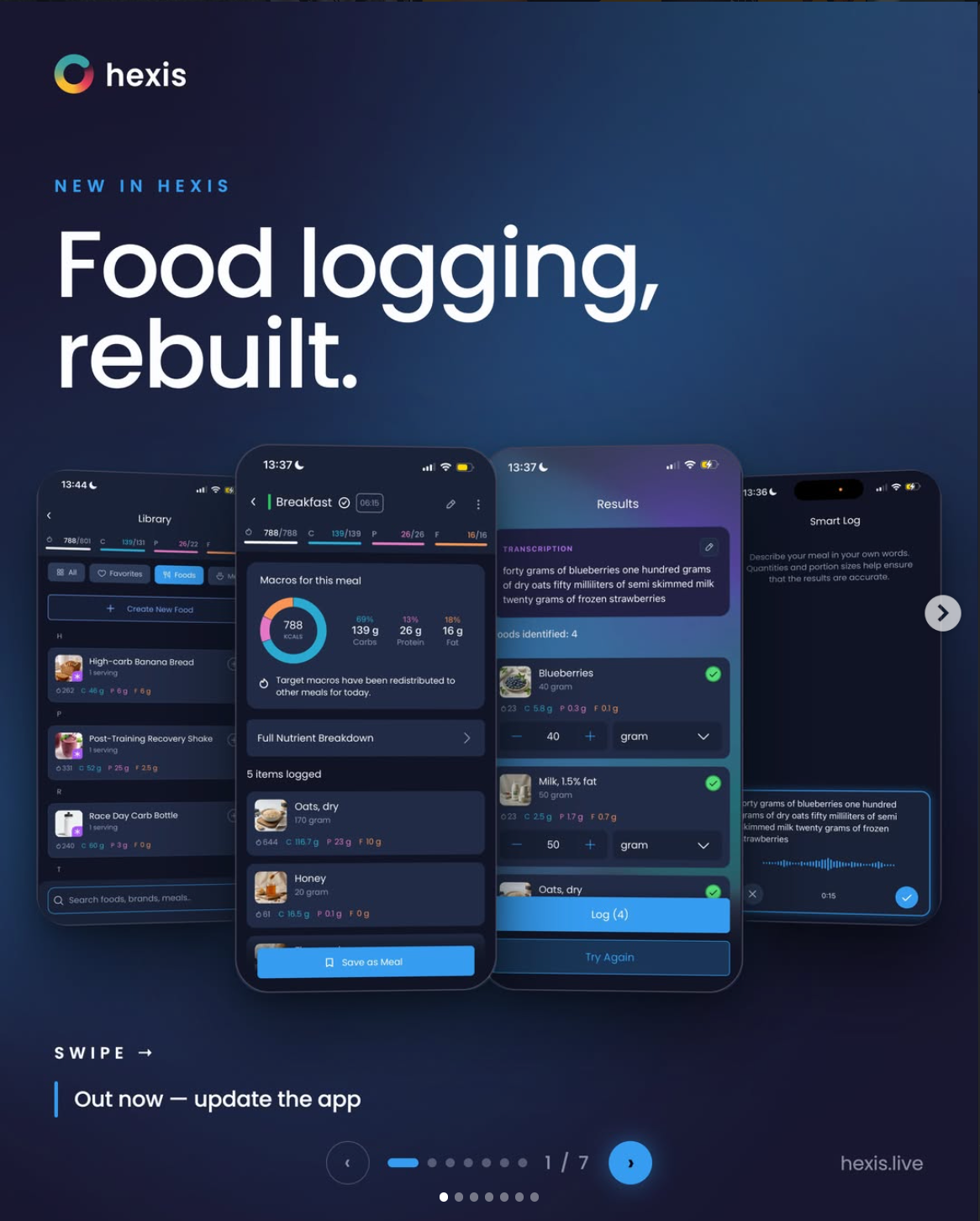
I use the same method for graphics in PN—INSIDER, and the same broader workflow produced dralfiegordon.com.
The interesting part is no longer any single asset.
It is that the brand is becoming a production system.
A presentation, social carousel, newsletter graphic or landing page does not need to begin with an empty canvas.
The typography, colours, components and image treatments are already there.
The work becomes deciding what needs to be communicated, then adapting the system around it.
I’ll be upfront
This is not a PowerPoint deck.
If somebody specifically needs a .pptx file they can edit offline, this format does not give them one.
It needs a browser, and external elements such as videos or calendars need an internet connection. A PDF or image export would be a separate feature.
But if the job is to present, explain, demonstrate or persuade, the browser removes most of the old constraints.
The deck can be interactive. It can be updated without resending a file. It can collect information, open a booking flow or demonstrate the idea it is selling.
It stops being a document and becomes a small piece of software.
It’s much easier to share with athletes.
The design still needs you.
Lovable did not decide what it should look like.
Lovable handled much of the production around those decisions: drawing components, managing presentation state, wiring the controls, implementing the animation and deploying the result.
That is the same distinction I keep coming back to with AI.
You can surrender the judgement, or you can offload the work around the judgement.
These decks are the second thing.
If you want to build something similar
I am opening a small number of spaces for digital transformation consulting.
You are busy. You already know that some of what fills your week could be done faster, and you have known it for a while. What you have not had is a spare hour to sit down and work out which part, in what order, using what. That hour never arrives, because the work that would free it up is always the first thing to get bumped.
If you feel behind with digital tools, I can help.
Also…
The thing inside the slides is better than the slides.
Hexis reads your athletes training and turns it into a personalised fuelling plan that changes as their training changes.
If you work with athletes across a team or organisation, see what Hexis can do for teams.
The slides are cool.
The product is the reason they exist.
Check out Hexis.
A little more, by email.
Personal notes on science, AI and the things I’m making. Straight from me to your inbox.